
ProjectOps for HubSpot
Installation, Project pipelines, reusable templates, automated Project setup, Project record cards, resource capacity, time tracking, budgets, project health, timelines, billing, permissions, data processing, troubleshooting, and support.
Product overview
ProjectOps extends HubSpot Projects with the operational capabilities commonly expected from dedicated project management software while keeping Projects connected to the rest of the HubSpot CRM.
HubSpot remains the system of record for Project records, tasks, users, owners, associations, pipelines, and CRM context. ProjectOps adds tools around those records for repeatable Project setup, planning, resource management, time tracking, budget visibility, health monitoring, and delivery management.
CRM-native Project records
Projects remain inside HubSpot and stay connected to the Companies, Contacts, Deals, users, activities, and other CRM context involved in delivery.
Project operations layer
ProjectOps adds reusable delivery structures, Project record tools, resource planning, time tracking, budget controls, Project health, and operational views.
Current production capabilities
- HubSpot OAuth Marketplace installation.
- Project pipeline management.
- Reusable Project template configuration.
- Built-in Project pipeline and template options.
- Automatic creation of template-defined Project work.
- Project Budget record card.
- Project Health record card.
- Project Team record card.
- Project Timeline record card.
- Project Time Tracker sidebar card.
- Resource Capacity workspace.
- Tracked Time and timesheet reporting.
- Stripe-based subscription billing.
Project records and the customer relationship remain in HubSpot. ProjectOps is designed to make the native Project object more useful for day-to-day project delivery.
Requirements
To install and use ProjectOps, you need:
- A HubSpot account with access to the HubSpot Projects object.
- A HubSpot user who can authorize Marketplace applications.
- Appropriate access to view and manage Projects and Project pipelines.
- Access to HubSpot tasks for template-created Project work.
- HubSpot users or owners for team assignment and resource capacity.
- An active ProjectOps trial, subscription, or recognized entitlement.
ProjectOps does not bypass HubSpot permissions. What an individual user can see or manage depends on that user's HubSpot access and the account's configuration.
Install ProjectOps
Install the Marketplace app
- Start the ProjectOps installation from the Atlantic Ops website or the HubSpot App Marketplace.
- Select the HubSpot account where ProjectOps should be installed.
- Review the requested HubSpot permissions.
- Approve the installation.
- Return to HubSpot and open ProjectOps.
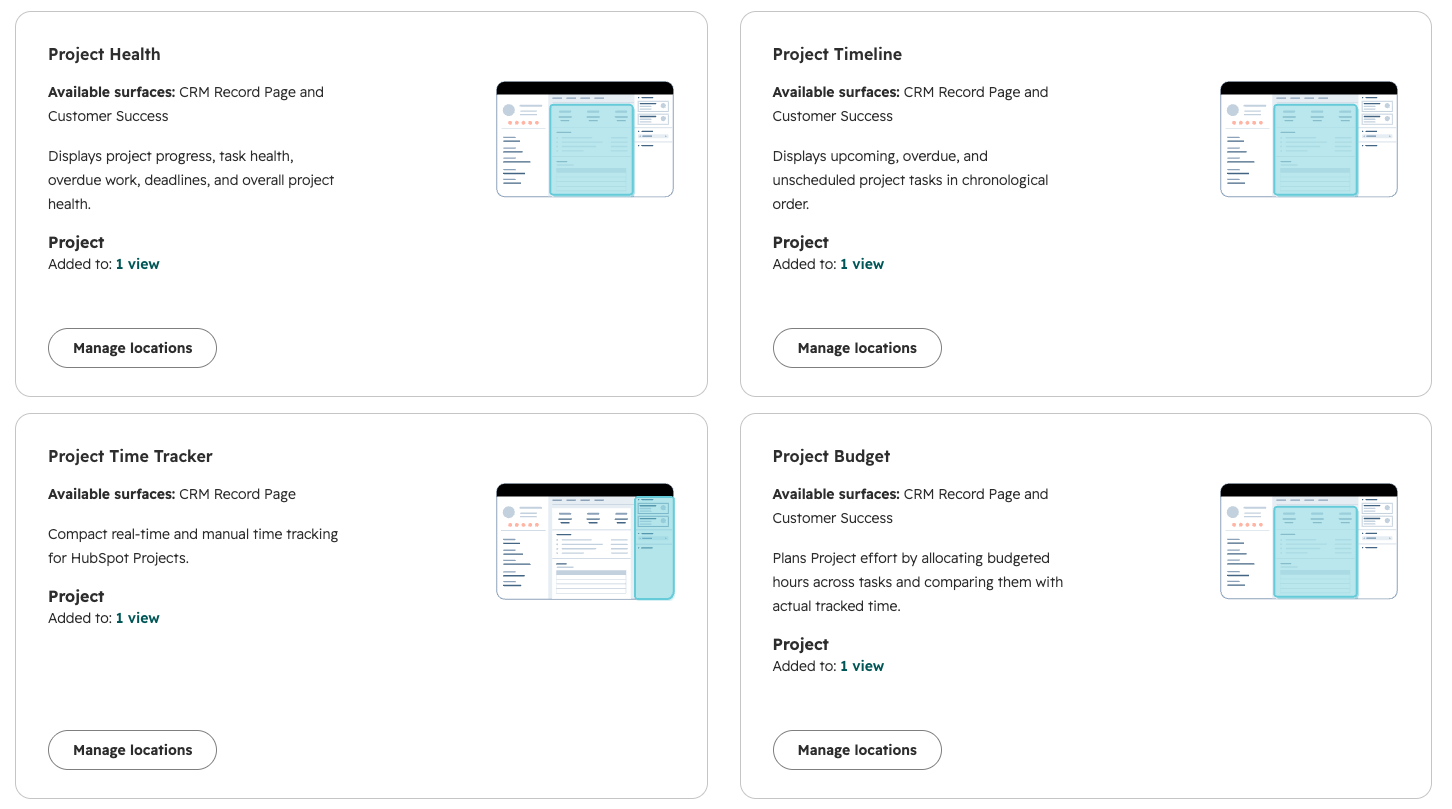
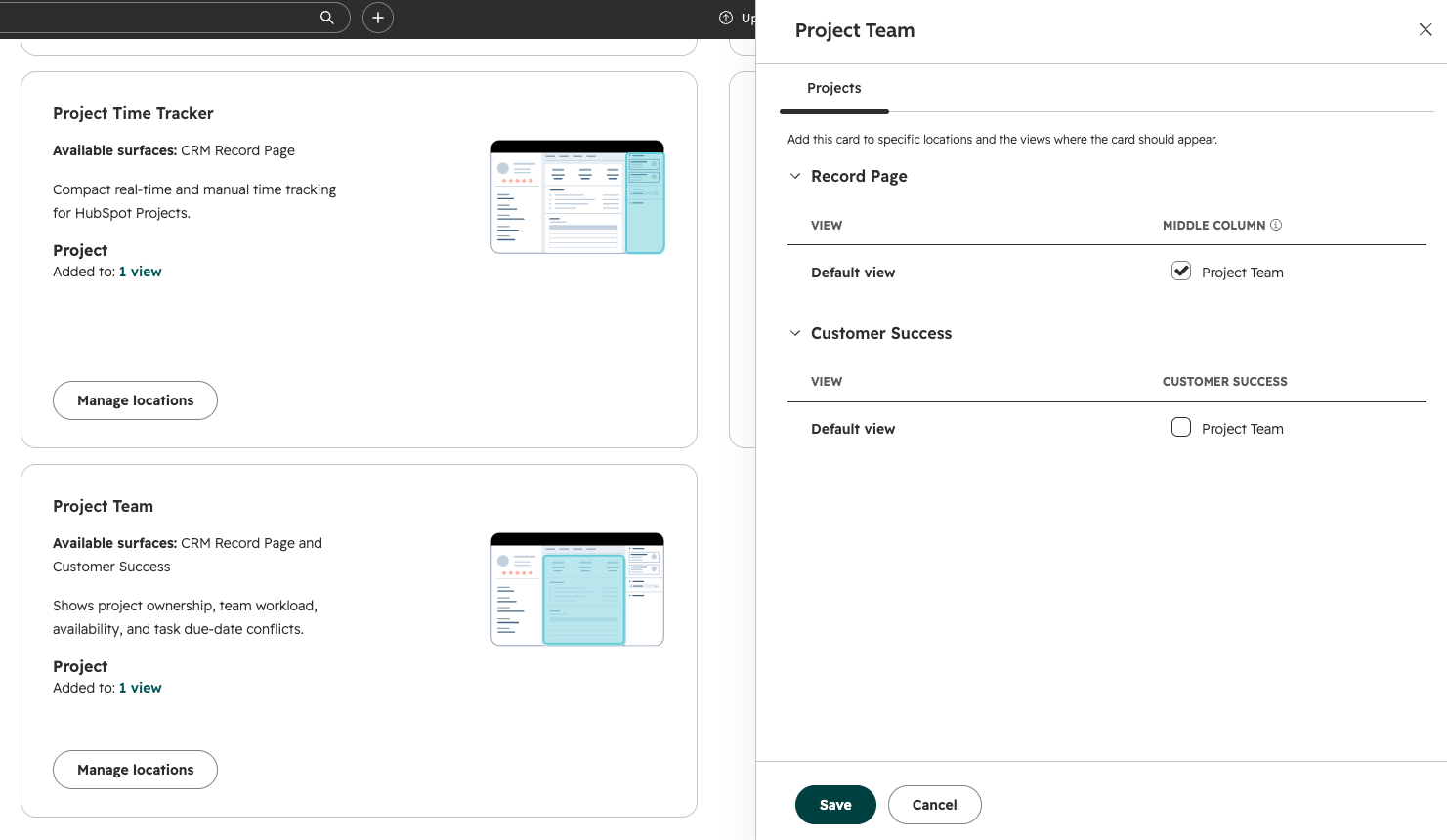
Add the Project record cards
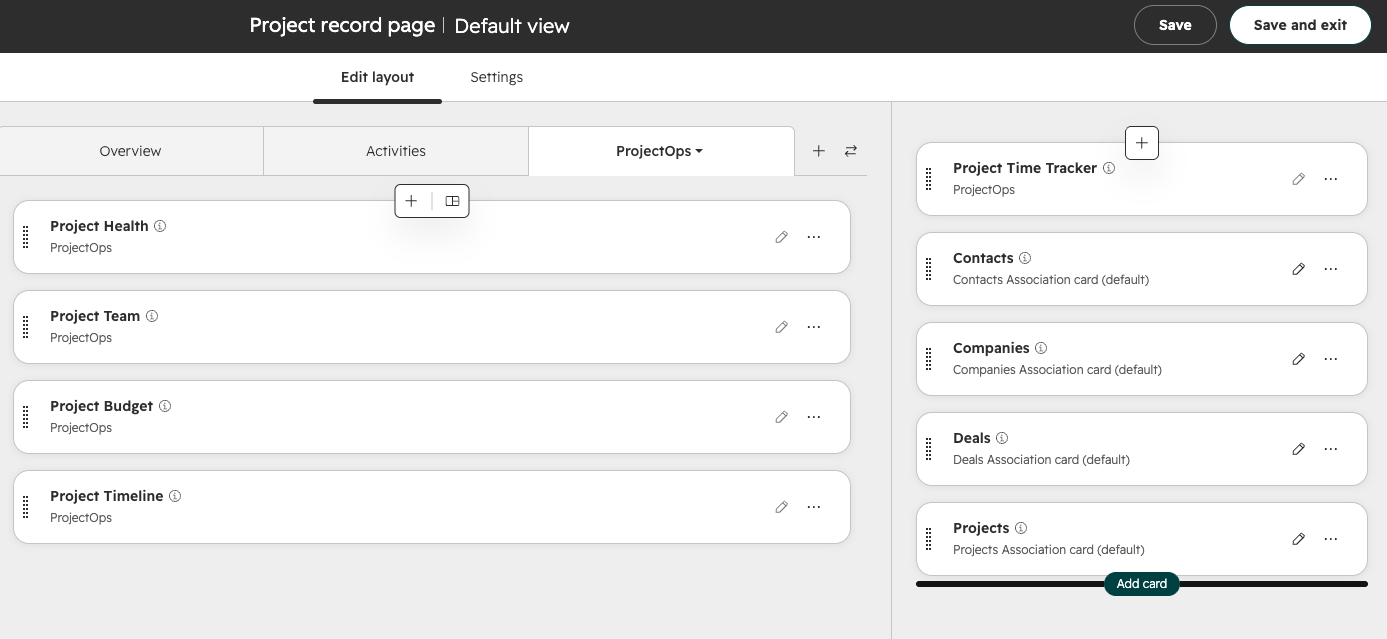
ProjectOps record cards are available for the HubSpot Projects object. Depending on the account's record customization, an administrator may need to add the cards to the Project record layout.
- Open a HubSpot Project record.
- Open record customization for the Project object.
- Add the required ProjectOps cards from the App card library.
- Save the Project record layout.
| Card | Recommended location | Purpose |
|---|---|---|
| Project Time Tracker | Record sidebar | Real-time and manual Project time entry. |
| Project Budget | Project record tab | Planned effort and tracked-time comparison. |
| Project Health | Project record tab | Progress, overdue work, deadlines, and health signals. |
| Project Team | Project record tab | Ownership, workload, availability, and task conflicts. |
| Project Timeline | Project record tab | Upcoming, overdue, and unscheduled Project work. |
Trial, usage, and billing
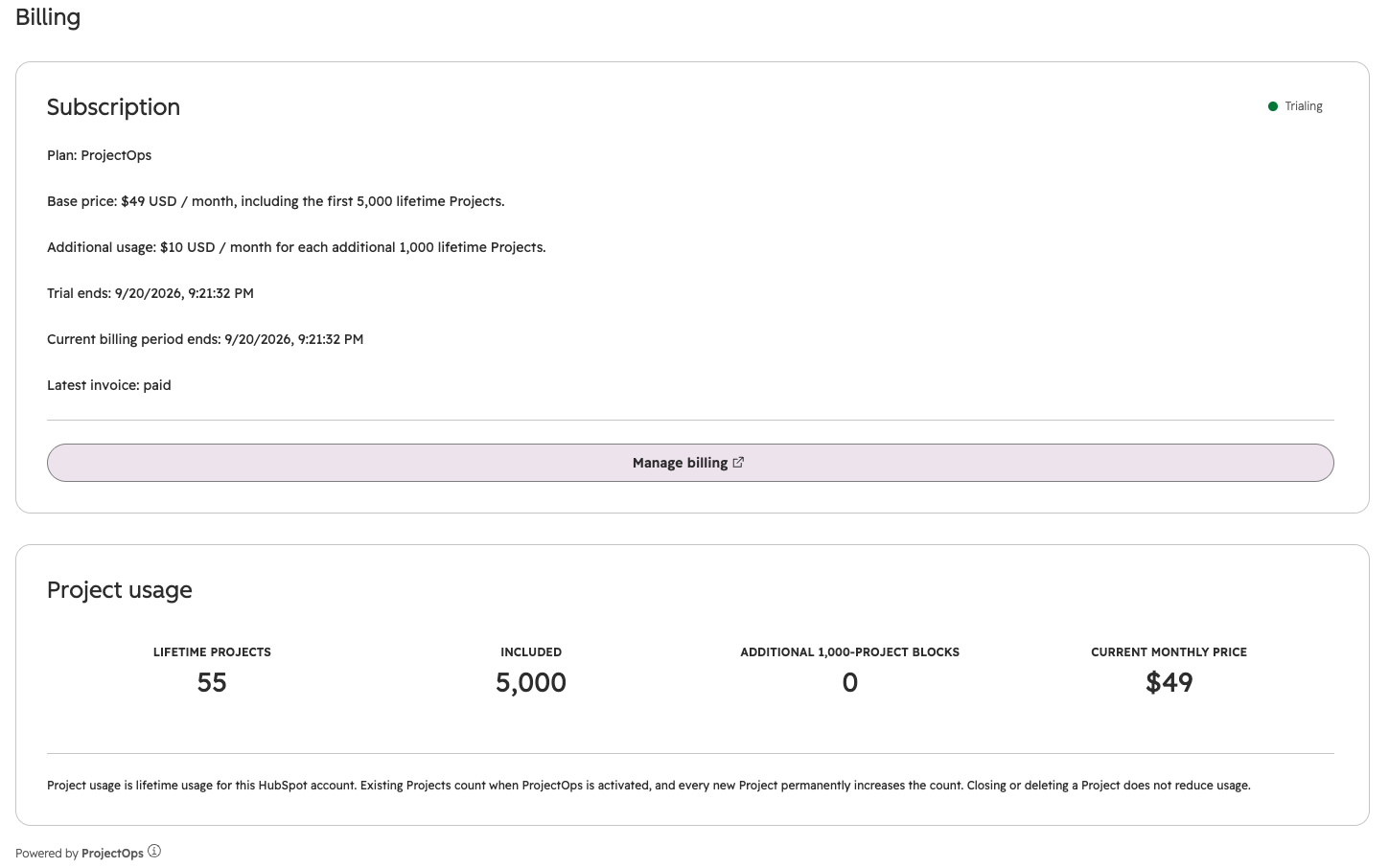
ProjectOps starts with a 14-day free trial. The standard base subscription is $49 USD per month.
Included Project usage
The base subscription includes the first 5,000 lifetime Projects in the connected HubSpot account.
Additional usage is billed at $10 USD per month for each additional 1,000 lifetime Projects.
Existing Projects count when ProjectOps is activated. Each new Project permanently increases the account's ProjectOps usage count. Closing or deleting a Project does not reduce lifetime usage.
| Lifetime Projects | Monthly price |
|---|---|
| 0–5,000 | $49 USD |
| 5,001–6,000 | $59 USD |
| 6,001–7,000 | $69 USD |
| 7,001–8,000 | $79 USD |
Stripe billing
Trial checkout, payment method management, invoices, receipts, and subscription management are handled through Stripe.
ProjectOps uses Stripe for subscription billing. Full payment-card numbers and CVC values are handled by Stripe rather than stored by the ProjectOps application.
The ProjectOps app workspace
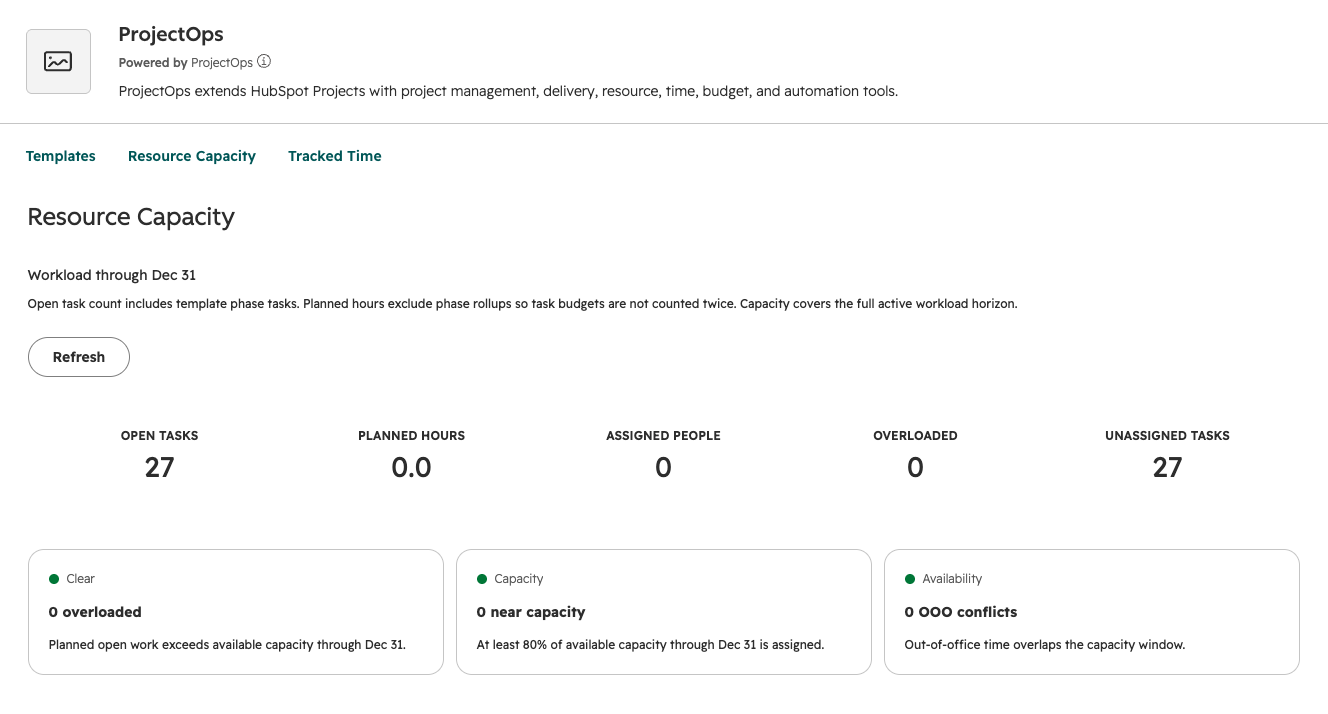
ProjectOps includes a HubSpot app page for Project administration and cross-Project operational views.
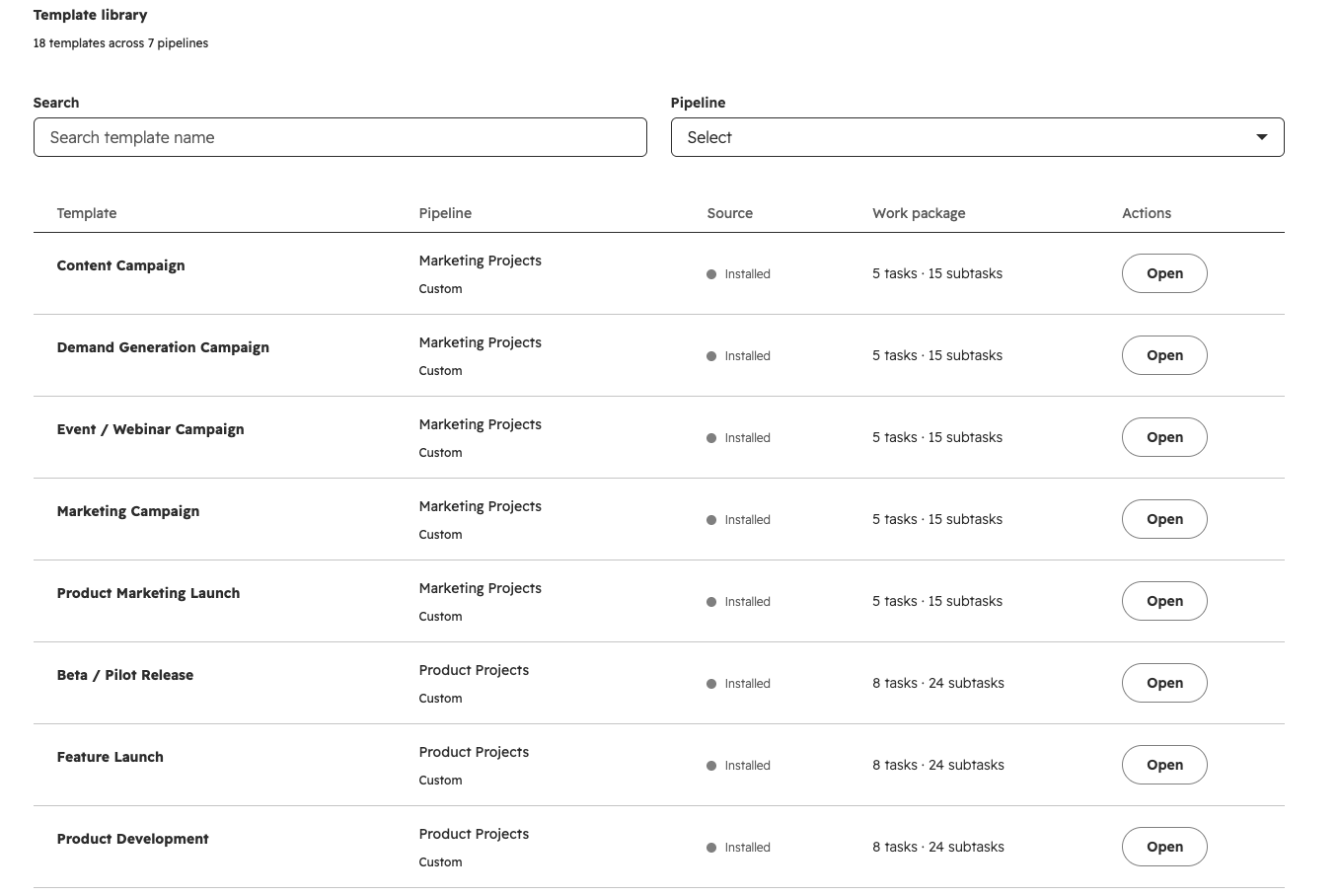
Project template library
Configure repeatable Project structures including pipelines, stages, tasks, subtasks, milestones, and planned Project work.
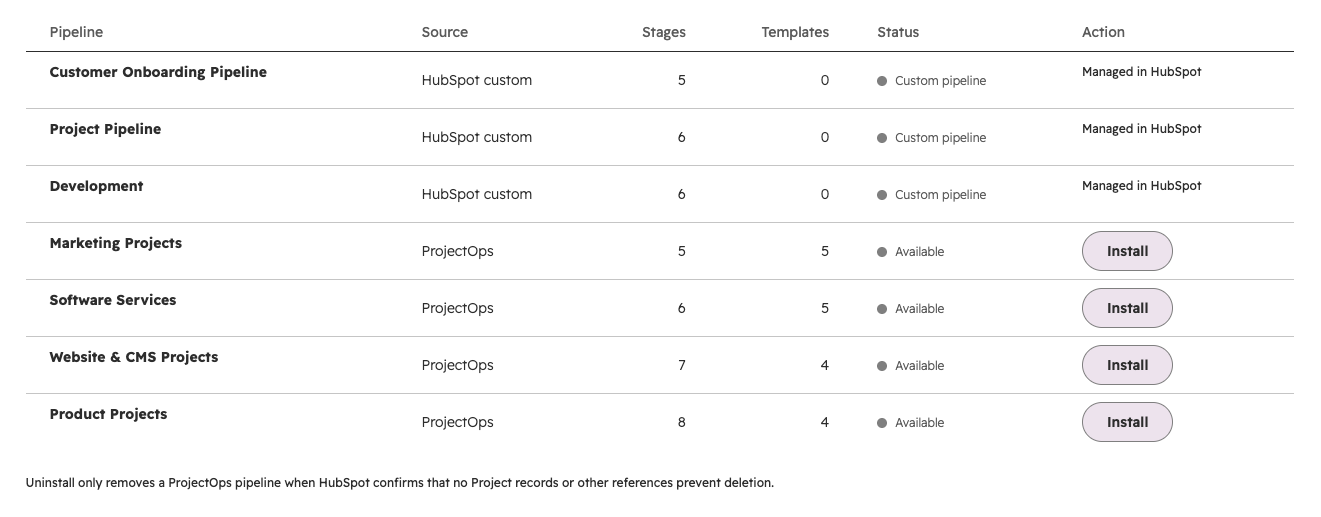
Pipeline management
Review HubSpot Project pipelines and install or remove supported ProjectOps pipeline structures.
Resource Capacity
Compare planned work with HubSpot user working hours, availability, out-of-office periods, overdue work, and unassigned tasks.
Tracked Time
Review submitted Project time and timesheet activity across the HubSpot account.
Project pipeline management
ProjectOps treats HubSpot Project pipelines as the foundation for repeatable delivery processes.
A pipeline represents the lifecycle of a Project. Its stages determine how the Project progresses from initial work through completion.
| Pipeline type | How ProjectOps treats it |
|---|---|
| ProjectOps pipeline | A supported pipeline that can be installed and managed through the ProjectOps workspace. |
| HubSpot native pipeline | Remains available and can continue to be used in the HubSpot account. |
| User-created pipeline | Remains managed in HubSpot and is not removed or replaced by ProjectOps. |
Pipeline stage status
Project pipeline stages can represent open or closed Project states. ProjectOps-created pipeline stages are configured with the appropriate HubSpot stage status so HubSpot can distinguish active Project stages from completed stages.
Uninstalling a ProjectOps pipeline
- A pipeline should not be removed while Projects still depend on it.
- Project templates assigned to the pipeline must be reassigned or removed before uninstalling the pipeline.
- HubSpot can reject pipeline deletion when existing records or other references prevent safe removal.
A Project pipeline is part of the HubSpot CRM data model. Review associated Projects and templates before uninstalling it.
Reusable Project templates
Project templates define the repeatable work that belongs to a Project delivery process.
Instead of rebuilding the same task plan for every new Project, administrators can configure reusable structures that ProjectOps applies when the corresponding Project is created.
Template structure
- Project pipeline.
- Project stages.
- Phase or grouping tasks.
- Individual tasks.
- Subtasks.
- Milestones.
- Planned timing.
- Planned effort or budget hours.
Built-in ProjectOps templates
| Template | Intended use |
|---|---|
| Software Implementation | Structured implementation Projects with repeatable delivery phases and task plans. |
| Marketing Campaign | Campaign planning and execution using a repeatable Project lifecycle. |
| Website / CMS Project | Website, redesign, migration, or CMS delivery Projects. |
| Product / Feature Launch | Cross-functional product and feature launch planning. |
A generated Project is still made up of normal HubSpot records. Project teams can manage the resulting Project and its work after the template has been applied.
Automated Project setup
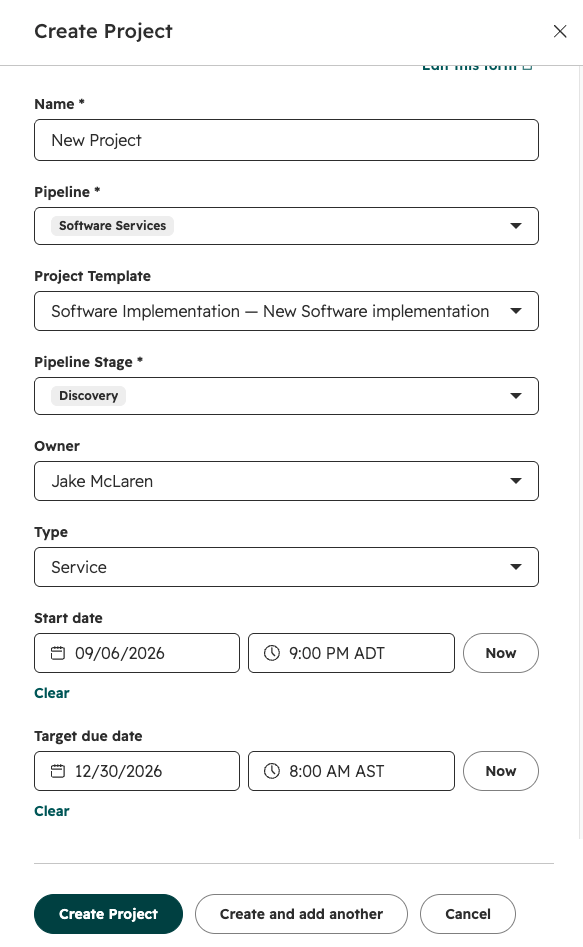
ProjectOps uses the Project's configured pipeline and template context to create the repeatable delivery structure associated with that type of Project.
- Configure or select the Project pipeline.
- Configure the reusable Project template.
- Create a new HubSpot Project in the applicable pipeline.
- ProjectOps identifies the applicable template configuration.
- ProjectOps creates the configured tasks, subtasks, milestones, and supporting Project structure.
- The Project team manages the resulting work directly in HubSpot.
ProjectOps record features such as time tracking can still be used on Projects that do not have a ProjectOps template applied.
Project record cards
ProjectOps adds purpose-built UI extensions to HubSpot Project records.
| Card | Function |
|---|---|
| Project Budget | Plans Project effort by allocating budgeted hours across tasks and comparing planned effort with actual tracked time. |
| Project Health | Displays Project progress, task health, overdue work, deadlines, and overall Project health. |
| Project Team | Shows Project ownership, team workload, availability, and task due-date conflicts. |
| Project Timeline | Displays upcoming, overdue, and unscheduled Project tasks in chronological order. |
| Project Time Tracker | Provides compact real-time and manual time tracking from the Project sidebar. |
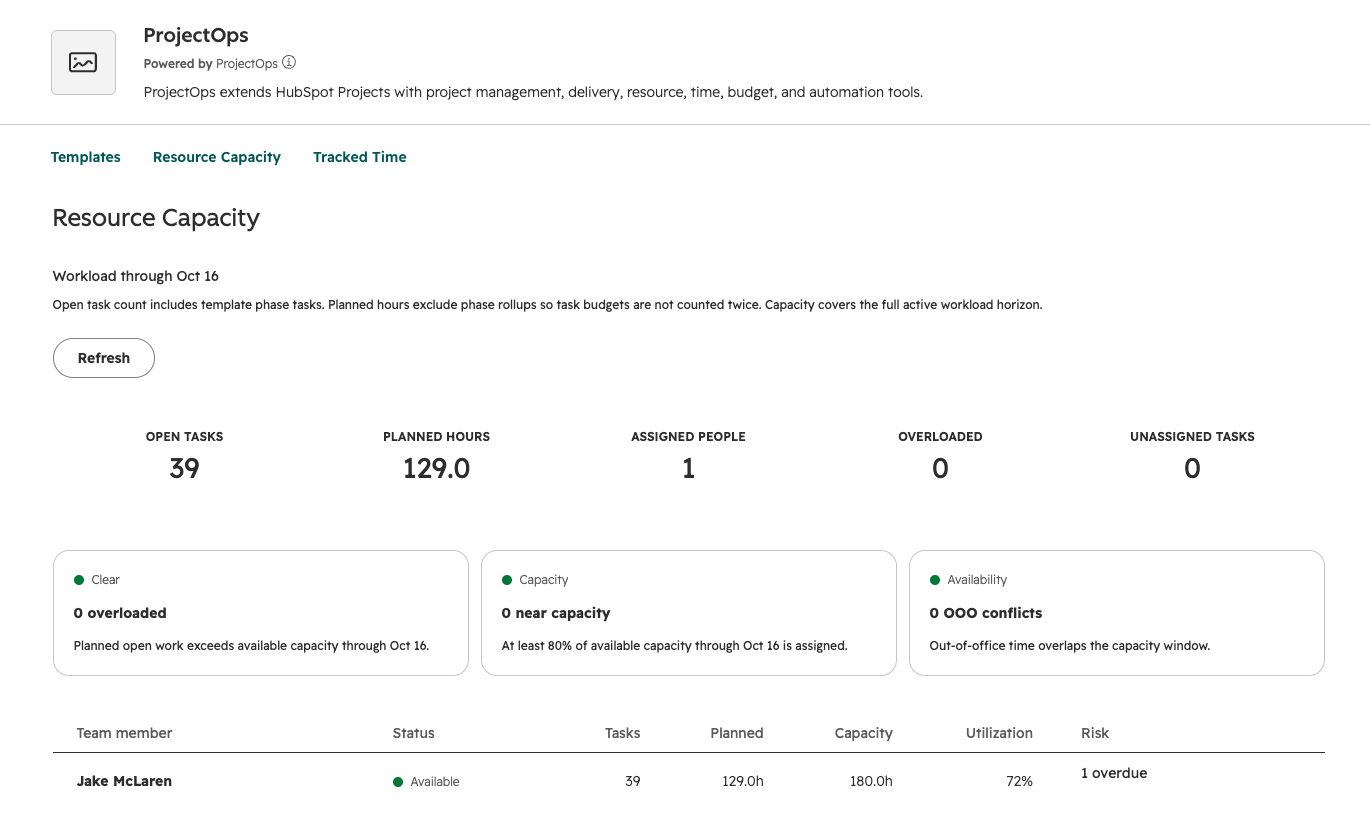
Resource Capacity
Resource Capacity provides a cross-Project view of planned workload and team availability.
Capacity inputs
- Open Project tasks.
- Task ownership.
- Planned task hours.
- HubSpot user working hours.
- HubSpot user availability.
- Out-of-office periods.
- Task due dates.
- Unassigned work.
- Tasks without planned-hour estimates.
Resource statuses
| Status | Meaning |
|---|---|
| Available | Planned workload is below the calculated capacity threshold and no higher-priority availability issue is detected. |
| Near capacity | Planned utilization is at least 80% of calculated capacity. |
| Overloaded | Planned hours exceed calculated capacity for the active workload horizon. |
| Availability conflict | Out-of-office availability overlaps the active Project workload horizon. |
| Capacity unavailable | ProjectOps cannot calculate usable working-hour capacity for the user. |
Resource Capacity uses planned effort to estimate future workload. Tracked time is handled separately by the ProjectOps time-tracking system.
Project time tracking
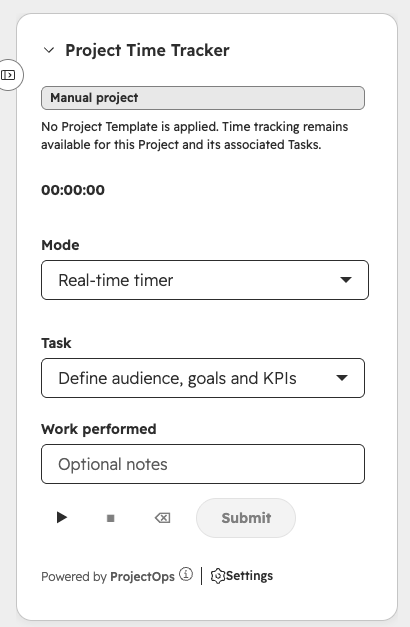
The Project Time Tracker is a sidebar card on HubSpot Project records. Users can record time against the Project itself or against an associated task.
Real-time timer
- Open a HubSpot Project.
- Select Project-only time or an associated task.
- Optionally enter a note describing the work.
- Start the timer.
- Stop the timer when work is paused or complete.
- Submit the recorded time.
Manual time entry
- Project or task.
- Hours.
- Minutes.
- Work date.
- Optional work-performed notes.
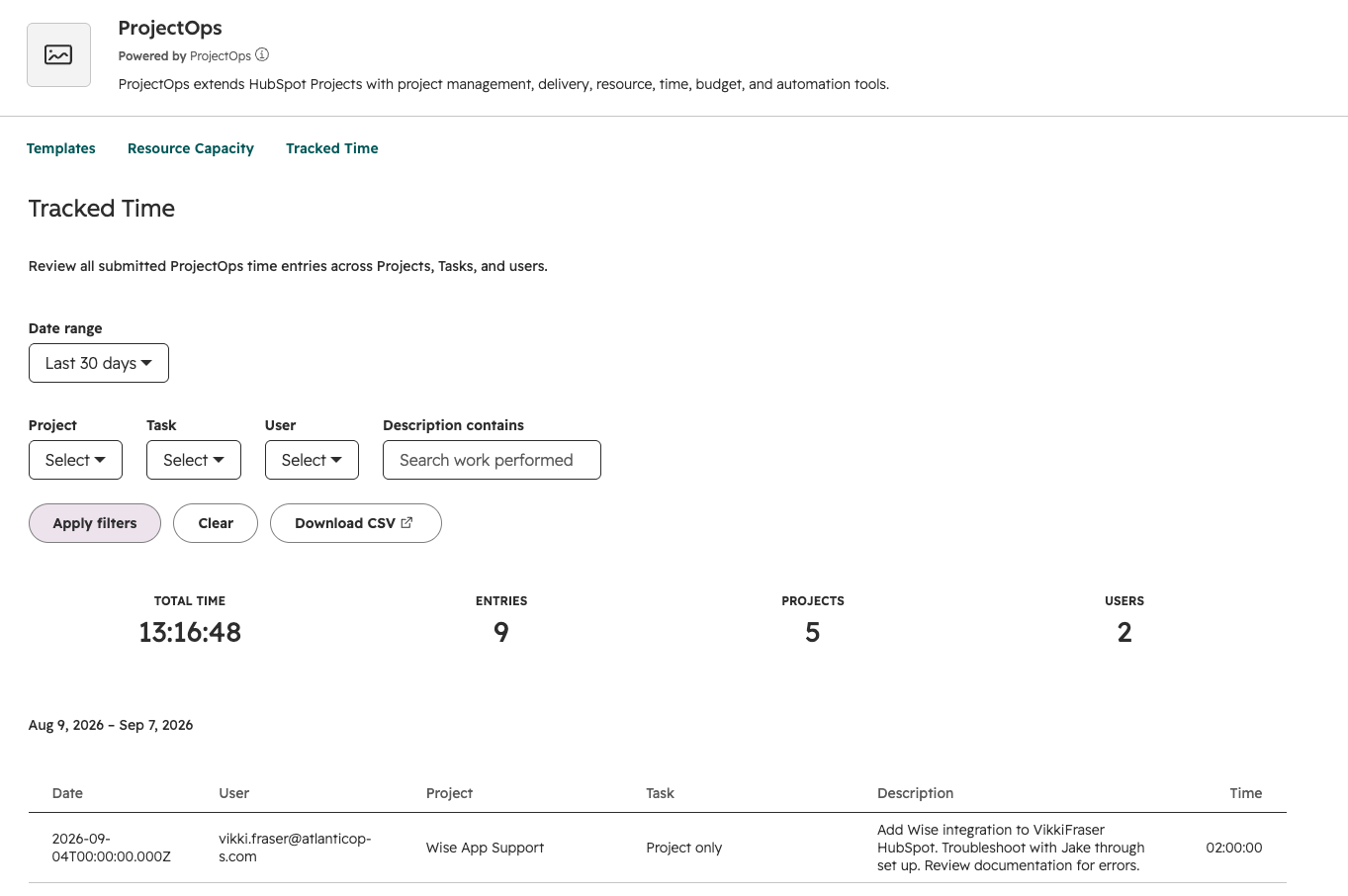
Tracked Time workspace
Submitted time can be reviewed from the ProjectOps Tracked Time page so administrators and Project leaders can review Project effort across the account.
The Project Time Tracker remains available for Projects and associated tasks even when no ProjectOps template is applied.
Project Budget and Project Health
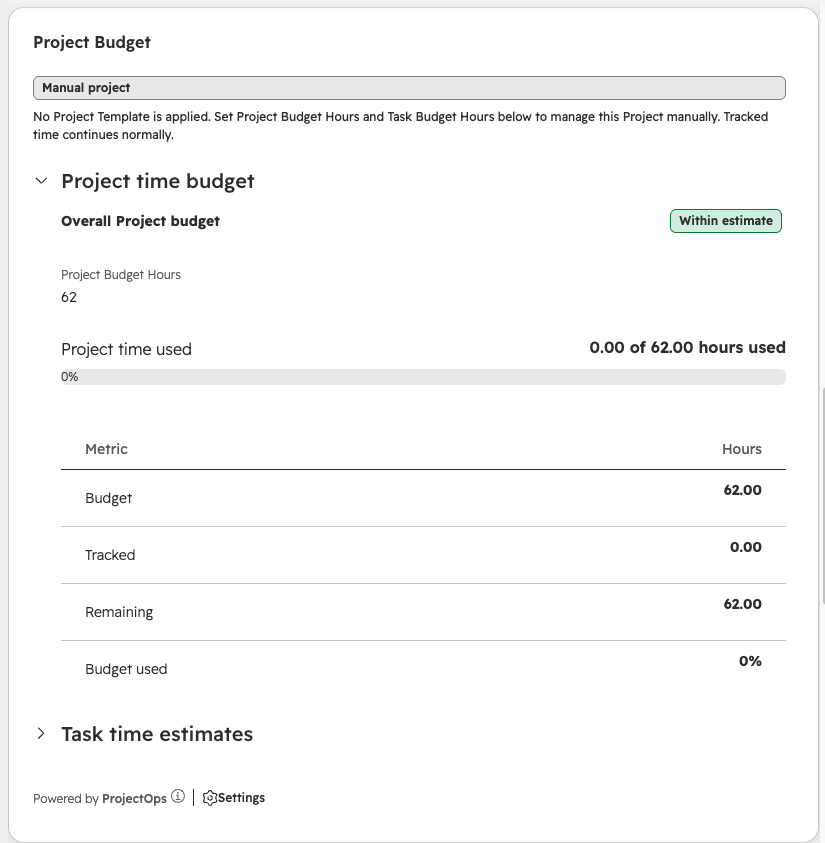
Project Budget
The Project Budget card is designed around effort rather than internal billing rates.
Planned hours can be allocated across the Project's work and compared with tracked time as delivery progresses.
This makes it possible to see when a Project is consuming more delivery effort than expected before the work is complete.
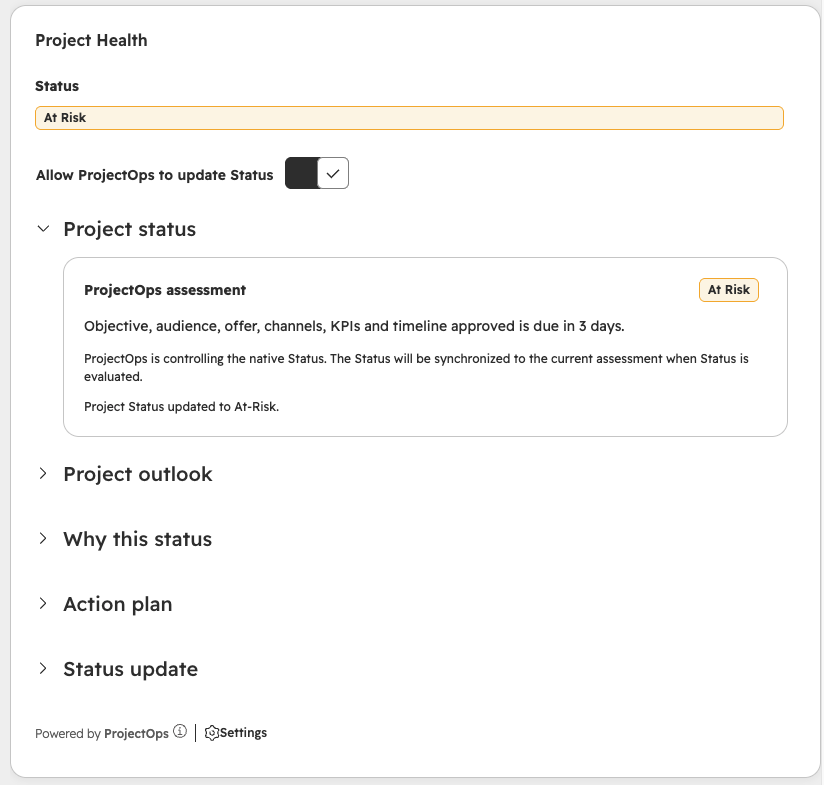
Project Health
The Project Health card brings together operational delivery signals such as:
- Overall Project progress.
- Task completion.
- Overdue work.
- Upcoming deadlines.
- Project timing.
- Delivery risk.
Health information is intended to help teams identify Projects that may require attention. It does not replace Project-owner judgment or customer communication.
Project Timeline
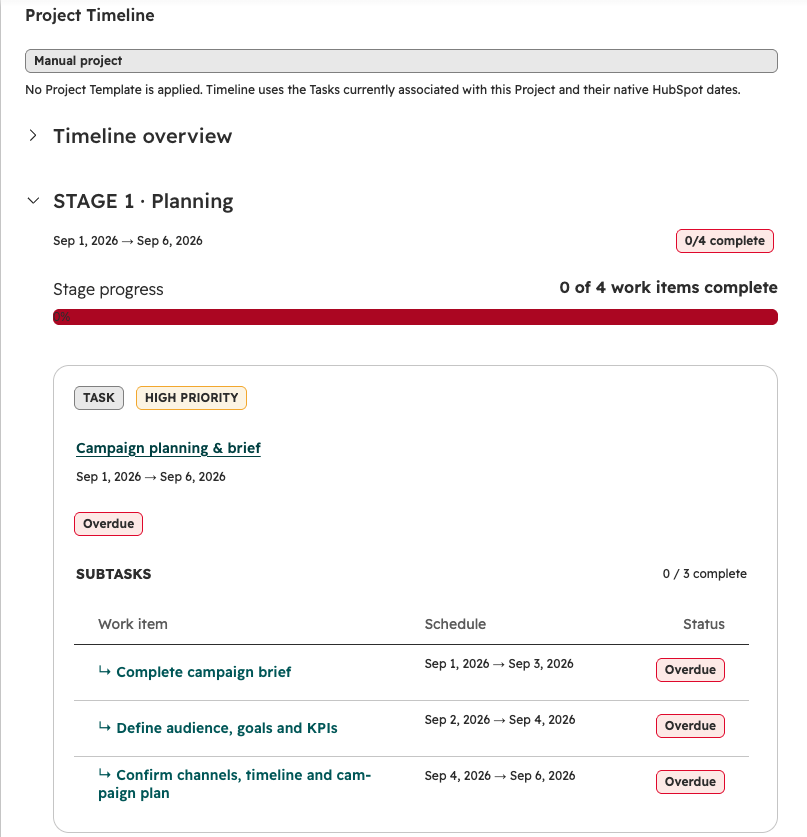
The Project Timeline card organizes Project work chronologically so the team can quickly understand what is late, what is coming next, and what has not been scheduled.
- Overdue tasks.
- Upcoming tasks.
- Unscheduled tasks.
The timeline is based on the tasks associated with the current HubSpot Project.
HubSpot data model
ProjectOps is designed around HubSpot's native CRM data model rather than creating a separate Project management database for CRM records.
HubSpot remains the source of truth for
- Projects.
- Project pipelines.
- Project stages.
- Tasks.
- Project and task ownership.
- HubSpot users and owners.
- CRM associations.
ProjectOps-specific data
ProjectOps maintains application-specific data required to provide its additional functionality, including template configuration, Project automation state, time tracking, billing usage, and other operational application state.
Projects created and managed with ProjectOps remain normal HubSpot Project records.
HubSpot OAuth permissions
The current ProjectOps Marketplace application requests the following required HubSpot scopes.
| Scope | Purpose |
|---|---|
| oauth | Installs ProjectOps and provides portal-specific authenticated HubSpot API access. |
| crm.objects.projects.read | Reads HubSpot Projects used by ProjectOps features. |
| crm.objects.projects.write | Creates or updates supported HubSpot Project data. |
| crm.schemas.projects.read | Reads the HubSpot Project schema and Project pipeline configuration. |
| crm.schemas.projects.write | Supports Project schema and pipeline configuration required by ProjectOps. |
| crm.objects.owners.read | Resolves Project and task owners for team and resource views. |
| crm.objects.users.read | Reads HubSpot user information used by team and availability features. |
| crm.objects.contacts.write | Included in the current ProjectOps application permission set for supported CRM operations. |
The current app manifest does not define optional or conditionally required OAuth scopes.
Data processing and application storage
ProjectOps reads HubSpot information required to provide Project management functionality and stores the application-specific state required for features that do not exist natively in HubSpot.
| Data | Direction | Purpose |
|---|---|---|
| Projects | HubSpot ↔ ProjectOps | Project automation, record cards, pipeline management, and usage tracking. |
| Project pipelines and schema | HubSpot ↔ ProjectOps | Pipeline discovery, template configuration, and supported pipeline installation. |
| Tasks | HubSpot ↔ ProjectOps | Template-generated work, timeline, budget, time tracking, health, and workload calculation. |
| Owners and users | HubSpot → ProjectOps | Team display, ownership resolution, working hours, capacity, and availability. |
| Template configuration | ProjectOps storage | Stores reusable Project delivery structures and mappings. |
| Time entries and timer state | ProjectOps storage | Supports real-time timers, manual entries, and tracked-time reporting. |
| Billing and Project usage metadata | Stripe / HubSpot ↔ ProjectOps | Subscription entitlement and lifetime Project usage billing. |
Application hosting
The current ProjectOps backend is hosted as a dedicated Atlantic Ops application service and uses PostgreSQL for application-side storage.
HubSpot continues to store the CRM records themselves. ProjectOps stores the additional application state required to provide ProjectOps-specific capabilities.
ProjectOps primarily processes Project-management, operational, ownership, task, and time-tracking information.
Security and privacy
ProjectOps uses HubSpot OAuth to access the installed HubSpot account. Authentication credentials are handled server-side and are not displayed to normal users through the ProjectOps interface.
Data access
- ProjectOps accesses the HubSpot account authorized during installation.
- Requested HubSpot OAuth scopes are limited to the application's current feature requirements.
- HubSpot remains responsible for user permissions and access to CRM records.
Application-side storage
ProjectOps stores application-specific operational data such as template configuration, timer and time-entry data, billing metadata, Project usage information, and other state required by the service.
Subscription billing
Stripe handles payment-method entry and subscription payment processing. ProjectOps does not need to store full credit-card numbers or CVC values.
Sensitive-data expectations
ProjectOps is not intended to store passwords, payment credentials, banking credentials, health information, or other unrelated sensitive information inside Project names, task descriptions, time notes, or template configuration.
Do not include HubSpot OAuth tokens, Stripe secret keys, database credentials, passwords, or other authentication secrets in support requests.
Hosting and compliance questions
This product documentation does not make contractual claims about data residency, backup schedules, RTO, RPO, SOC 2, ISO 27001, or other certifications. Contact Atlantic Ops when vendor-review or contractual security documentation is required.
Uninstalling ProjectOps
ProjectOps creates and works with native HubSpot records. Removing the app does not necessarily remove data that has already been created in HubSpot.
Before uninstalling
- Review ProjectOps-created Project pipelines.
- Review Project templates.
- Review generated tasks and milestones.
- Review stored time entries.
- Review subscription billing.
Project pipelines
If a ProjectOps pipeline should be removed, use ProjectOps Pipeline Management before uninstalling the app when possible. HubSpot can prevent pipeline removal when records or other references still depend on the pipeline.
Generated HubSpot records
Projects, tasks, milestones, pipeline configuration, and other records already created in HubSpot may remain in the HubSpot account after ProjectOps is removed.
Billing
Manage the Stripe subscription separately through ProjectOps Billing if billing should stop. Removing a HubSpot app and cancelling a Stripe subscription are separate actions.
Application-side data deletion
Contact Atlantic Ops support to request deletion of ProjectOps application-side data. Include the HubSpot account ID and the requested deletion scope.
Troubleshooting
ProjectOps says a trial or subscription is required
- Open ProjectOps Billing and confirm the current subscription status.
- Complete the Stripe trial checkout if billing has not been started.
- Use Manage billing if the subscription or payment method needs attention.
- Reload ProjectOps after changing billing information.
ProjectOps cards do not appear on Project records
- Confirm ProjectOps is installed in the correct HubSpot account.
- Open Project record customization.
- Find the ProjectOps cards in the App card library.
- Add the cards to the appropriate Project record view.
- Confirm the current user can access Projects.
A new Project did not receive template tasks
- Confirm the Project is in the intended Project pipeline.
- Confirm the pipeline has the intended Project template configured.
- Confirm the Project template is installed and active.
- Review the template structure for tasks and milestones.
- Contact support with the HubSpot account ID and Project record ID if creation still fails.
Resource Capacity cannot calculate a user's capacity
- Confirm the task is assigned to the expected HubSpot owner.
- Confirm working hours are available for the HubSpot user.
- Confirm the task has planned budget hours.
- Review out-of-office periods and task due dates.
- Refresh Resource Capacity after making changes.
A user appears overloaded
ProjectOps marks a team member overloaded when planned Project workload exceeds calculated working-hour capacity across the active workload horizon.
Time tracking will not start
- Confirm the Project Time Tracker card is present on the Project record.
- Confirm ProjectOps can load the current Project.
- Try Project-only time if an associated task cannot be selected.
- Reload the Project record and try again.
Budget hours do not match Resource Capacity
Resource Capacity excludes template phase rollups from planned-hour totals so phase totals and underlying task budgets are not counted twice.
A Project pipeline cannot be uninstalled
- Check whether Projects still use the pipeline.
- Check whether Project templates are still assigned to the pipeline.
- Reassign or remove dependencies first.
- Try the uninstall action again.
Frequently asked questions
What is ProjectOps?
ProjectOps is a HubSpot app that extends the native Projects object with Project templates, resource capacity, time tracking, budget visibility, health monitoring, timelines, and Project delivery tools.
Does ProjectOps replace HubSpot Projects?
No. ProjectOps is designed around HubSpot Projects and extends the native Project object rather than replacing it.
How much does ProjectOps cost?
ProjectOps starts at $49 USD/month after a 14-day free trial. The base subscription includes the first 5,000 lifetime Projects.
What happens after 5,000 Projects?
Additional usage costs $10 USD/month for each additional block of 1,000 lifetime Projects.
Does closing a Project reduce billing usage?
No. ProjectOps billing uses lifetime Project usage. Closing or deleting a Project does not reduce the lifetime count.
Do existing Projects count toward usage?
Yes. Existing Projects are included when ProjectOps establishes the HubSpot account's initial usage baseline.
Can I use my existing Project pipelines?
Yes. HubSpot native and user-created Project pipelines remain available.
Which built-in Project templates are available?
Current built-in options include Software Implementation, Marketing Campaign, Website / CMS Project, and Product / Feature Launch.
Can ProjectOps create Project tasks automatically?
Yes. A configured Project template can create repeatable tasks, subtasks, milestones, and delivery structure for a new Project.
Can time be tracked without using a Project template?
Yes. The Project Time Tracker can be used for Projects and their associated tasks even when no ProjectOps template is applied.
Can users enter time manually?
Yes. ProjectOps supports both a real-time timer and manual entry of hours, minutes, work date, task, and optional work notes.
How does Resource Capacity determine overload?
ProjectOps compares planned task hours with calculated user capacity across the active workload horizon. A user is marked overloaded when planned hours exceed calculated capacity.
Does ProjectOps store financial or banking data?
ProjectOps is a Project-management application and is not designed to process customer banking or payment transaction data. Stripe handles subscription payment methods for ProjectOps billing.
What happens to HubSpot records if ProjectOps is uninstalled?
HubSpot records already created through ProjectOps may remain in the HubSpot account. This can include Projects, tasks, milestones, pipeline configuration, and other HubSpot-side data.
Does uninstalling ProjectOps automatically cancel billing?
HubSpot app removal and Stripe subscription cancellation are separate actions. Manage billing through ProjectOps Billing if the subscription should be cancelled.
How do I request deletion of ProjectOps application data?
Contact Atlantic Ops support with the HubSpot account ID and the requested deletion scope.
Privacy, legal, and support
When contacting support, include the HubSpot account ID and enough non-secret context to identify the affected Project, task, Project pipeline, Project template, user, time entry, resource-capacity issue, or billing state.
Do not include HubSpot OAuth tokens, Stripe secret keys, database credentials, passwords, or other authentication secrets in a support request.
Contact Atlantic Ops support
Get help with installation, billing, Project pipelines, templates, automated Project setup, Project record cards, time tracking, resource capacity, budgets, Project health, timelines, or application-side data deletion.